How to Remove a Line in Word (The Horizontal Line That Won't Delete)
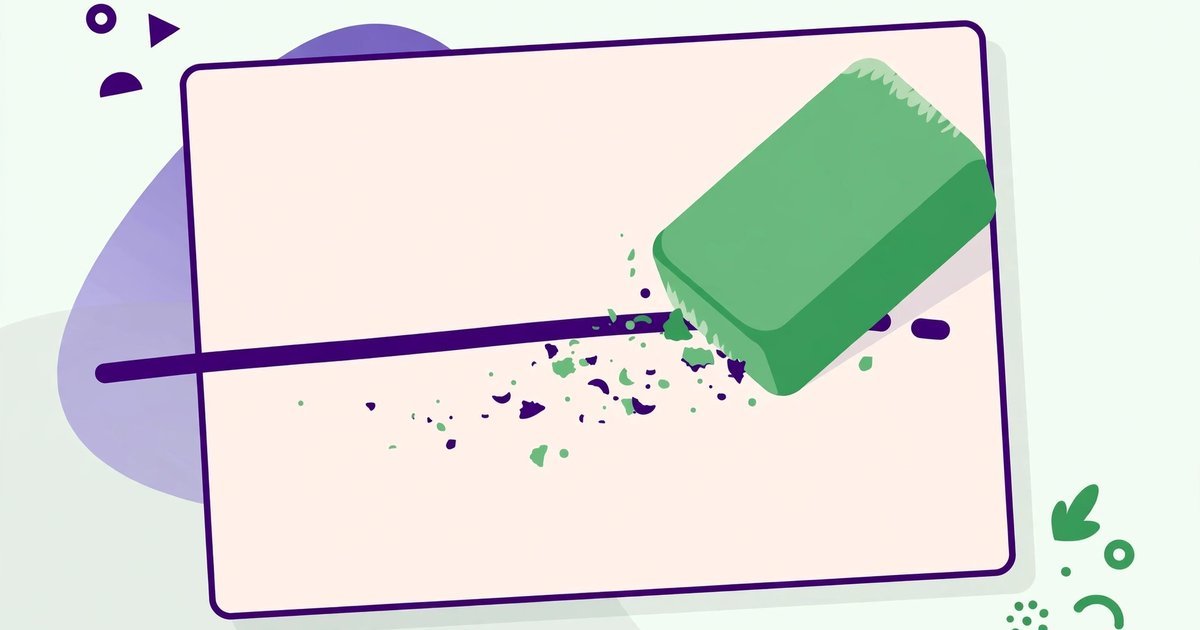
You typed three dashes, pressed Enter, and Word drew a line across the page that now refuses to be deleted. That line is not a character — it is a border, which is why Backspace ignores it. Here is how to remove every kind of Word line.
Remove extra spaces, duplicate lines, HTML tags and empty lines in one click.
The classic: the autoformat line (from --- or ___)
Typing ---, ___, === or *** followed by Enter triggers AutoFormat, which converts them into a paragraph border. To remove it: place your cursor in the paragraph directly above the line, go to Home → Borders → No Border (the Borders button is in the Paragraph group). The line disappears. Alternatively, press Ctrl+Z immediately after the line appears to undo the AutoFormat itself.
If No Border does not work: it is a shape or a table border
- Shape line: click directly on the line — if handles appear, it is a drawn shape: press Delete.
- Table border: if the line sits at a table edge, click inside the table, go to Table Design → Borders → No Border.
- Header/footer line: double-click the header or footer area and repeat the No Border step there — lines in headers live in a different layer.
Removing a line in Word Online (browser Word)
Word for the web has the same Borders control under Home → Paragraph → Borders → No Border, but the "browser word dupe" confusion usually comes from duplicated lines pasted from elsewhere: those are usually paragraph borders copied with the text — select the affected paragraphs and apply No Border to the whole selection at once.
Stop it happening again
Disable the feature: File → Options → Proofing → AutoCorrect Options → AutoFormat As You Type → uncheck "Border lines". You will never get a surprise line again — and when you actually want a divider, insert one deliberately via Borders → Horizontal Line. For cleaning up pasted text generally, our Text Cleaner strips stray formatting from copied content.
Frequently asked questions
Why can't I select the line with my mouse?
Because it is not text — it is a border attached to a paragraph. Borders are removed through the Borders menu, not by selecting and deleting.
Does No Border remove all borders on the page?
No — it applies to the selected paragraphs only. Select the whole document (Ctrl+A) first if you want every border gone.
What if the line is under a heading?
Same fix: put the cursor in the paragraph above the line (the heading itself) and apply No Border. The border belongs to that paragraph.
 The Password Game: How to Play, Rules Guide & Tips
 How to Calculate Chronological Age (With Examples)
 Best PDF Viewers for Mac, Linux & Windows