How to Scan a QR Code on iPhone (and Fix It When It Won't Scan)
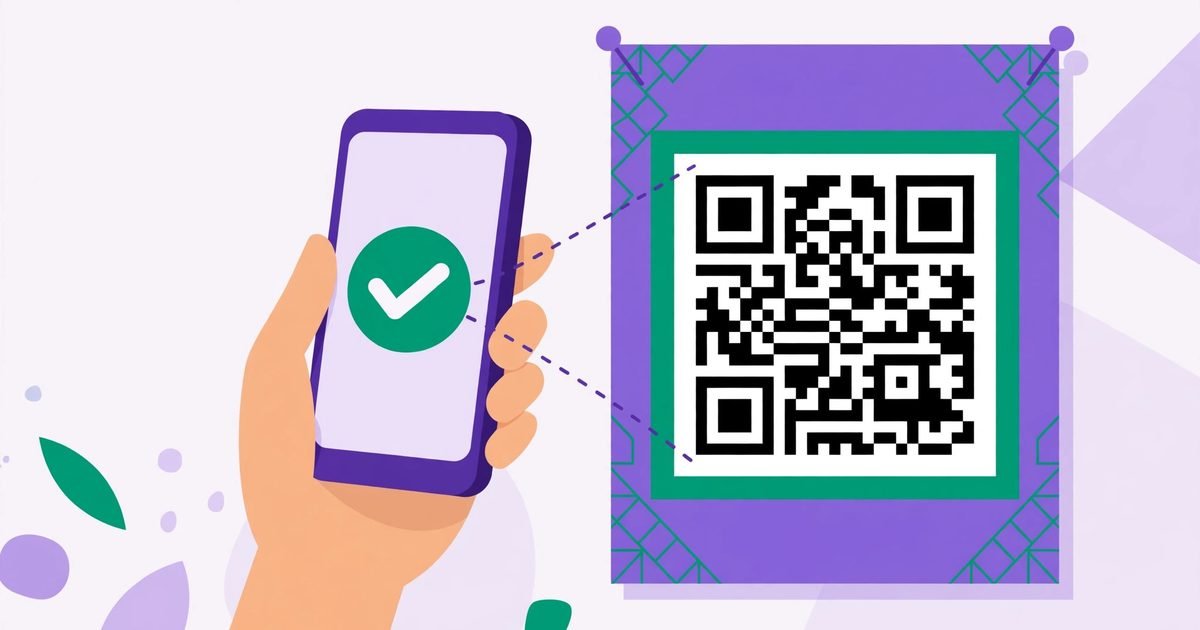
Every iPhone since iOS 11 scans QR codes with no app to install — most people just never notice the feature is already there. Here are the three ways to do it, and what to try when a code refuses to read.
Scan a QR code from an image or your camera — decoded in your browser.
Method 1 — The Camera app (the one everyone should use)
- Open Camera (or swipe left from the lock screen).
- Point it at the code so the whole code, including its white border, is in frame.
- Hold still for a second — a yellow notification banner appears at the top with the link or action.
- Tap the banner to open it.
No button to press, no mode to switch: the rear camera detects QR codes automatically in Photo mode. Make sure "Scan QR Codes" is on in Settings → Camera if it ever seems dead.
Method 2 — Control Center's Code Scanner
For codes in awkward spots (a code on a screen, in dim light), the dedicated scanner helps: add it once via Settings → Control Center (add "Code Scanner"), then swipe down from the top-right corner and tap the QR icon. It opens a scanner view with a flashlight toggle — handy when the Camera app's auto-detection feels slow.
Method 3 — Scan a code from a photo or screenshot
Received a QR code as an image? Open it in Photos and long-press directly on the code — iOS offers to open the link. The same works for a screenshot you just took. And if you are on a computer instead, our QR Code Scanner reads codes from an uploaded image right in your browser.
When it will not scan — the checklist
- Too far or too close: the whole code plus its white border must fit in frame; step back for big codes, closer for small ones.
- Too small or too dense: a code under ~2 cm, or one stuffed with data, needs a bigger print (see our QR size guide).
- Glare or damage: tilt the phone to kill reflections on glossy prints; a torn corner often still scans thanks to error correction, but a destroyed finder square (the big corner boxes) usually kills it.
- Low light: use the Code Scanner's flashlight, or move to better light.
- Dirty lens: wipe it — a smudged lens is the most embarrassing cause of all.
- Wrong code type: your phone reads QR codes, not every 1D barcode — for those, a dedicated barcode scanner app is the answer.
Safety note before you tap
Your phone shows the destination URL in the banner before you open it — read it. If a code on a flyer or a random sticker leads somewhere unexpected (a login page, a download), do not tap. Stickers placed over legitimate codes are a real scam: when in doubt, type the address yourself.
Frequently asked questions
Do I need an app to scan QR codes on iPhone?
No — the Camera app has done it natively since iOS 11. Third-party scanner apps mostly add ads and tracking you do not need.
Why does my iPhone camera not detect the QR code?
Check Settings → Camera → Scan QR Codes is on, get the whole code (with its white border) in frame, and improve the light. A very small or damaged code may simply be unscannable.
Can I scan a QR code from a screenshot?
Yes — open the screenshot in Photos and long-press the code, or use the Live Text feature on the image.
Does scanning a QR code use mobile data?
Only opening the link does. The scan itself is just your camera reading squares.
 QR Code Sizes: How Small (and How Big) Can a QR Code Be?
 How QR Codes Work: Versions, Capacity, Static vs Dynamic & History
 How to Make QR Codes for LinkedIn, Instagram & Facebook (and Flyers)